Internet Page Authoring for Independent Language Learning Workshop |
Part 3 - Handout
On this page: Aims | Homepages | External Hyperlinking | Internal Hyperlinking | Importing Pictures | Exercises | Putting things on the Internet
Aims: The aims of this handout are to:
There are different types of home page you can have. For example, personal home pages with pictures of your cat, homepages for students to present a friendly image, and academic homepages to demonstrate your professionalism and to enhance the academic reputation of the ELC. This latter type of home page, the academic homepage, is what will be used in the workshop as a vehicle for practising hyperlinking and picture importing skills.
The audience for your personal academic homepage may include people:
It's not a good idea to give too much personal information, such as your home phone number.
How to include a hyperlink to a site outside the site that your page is on:
1. Type in the words that you want to make into a hyperlink; e.g. the name of the organisation or site that you are linking to. Example: 'The Hong Kong Polytechnic University' (It is an external site because the HKPU homepage is not on the ELC server).
2. Use your browser (Netscape or Internet Explorer) to go to the HKPU home page. Click in the address box called 'Location:'; highlight the address, i.e. http://www.polyu.edu.hk/ ; click 'Edit' from the menu at the top; then click 'Copy'.
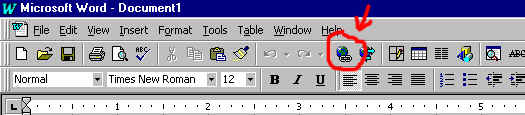
3.Go back to Word and highlight the words 'The Hong Kong Polytechnic University'. Either click the 'Insert Hyperlink' icon:
OR Click the 'Insert' menu at the top, then click 'Hyperlink' at the bottom of the drop-down list.
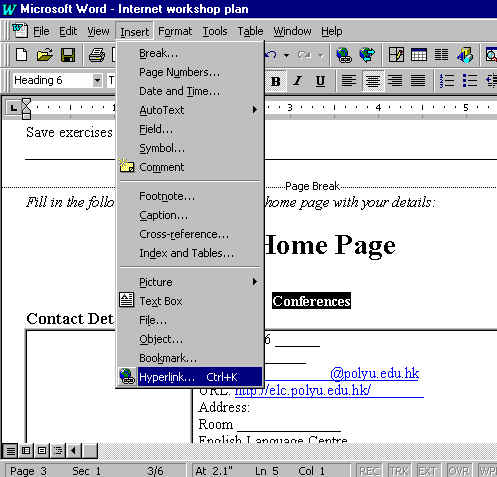
4.A big gray box will appear called 'Insert Hyperlink'.
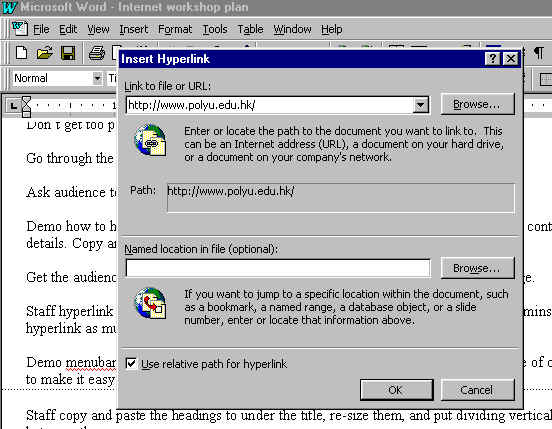
Put your cursor in the white box at the top called 'Link to file or URL:', click once in this white box, hold down the Control key on your keyboard, and still holding it down, press 'v'. This inserts the Internet address 'http://www.polyu.edu.hk/' in the white box. Then click the 'OK' button at the bottom of the big gray box.
5.The big gray box will disappear and the words 'The Hong Kong Polytechnic University' will now be in blue and underlined, like this: 'The Hong Kong Polytechnic University'. This means that you have successfully hyperlinked.
6. Now you need to double-check that this works by looking at your page with an internet browser such as Netscape. First you need to save your Word page as an Internet page.
7. To save your Word page as an Internet page, click 'File', 'Save As'. You should see a big gray box called 'Save As'. At the bottom of this box it says: 'Save as type'; click the down arrow, scroll down to the bottom of the list of file types and choose 'HTML document'.
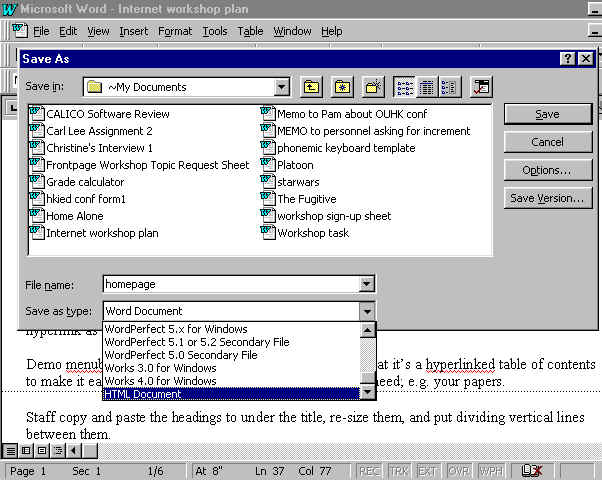
Type 'homepage' in the 'File name' box, then click the 'Save' near the top right corner of the big Grey 'Save As' box.
8. Now you need to look at your page with a browser such as Netscape. Go to your Netscape program, and click 'File', 'Open Page'.
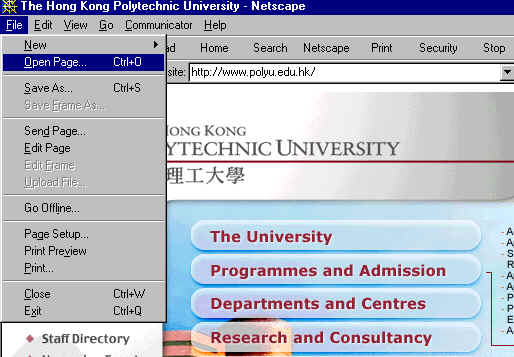
Then click the 'Choose File' button on the right of the gray 'Open Page' box.
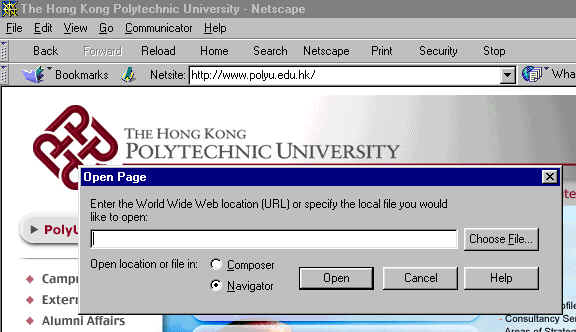
Choose the file you want to open:
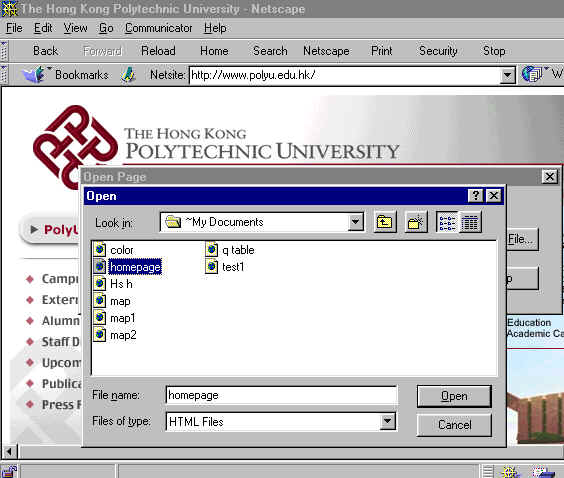
Then press the 'Open' button at the bottom right. See above picture.
Then press the 'Open' button in the lower centre of the next gray box. See below:
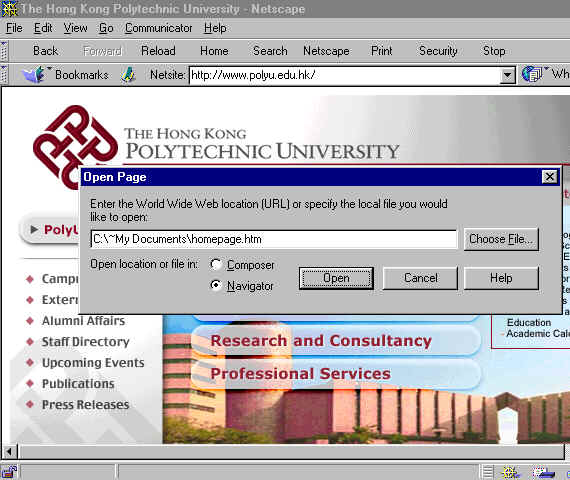
Your homepage will now appear.
Try clicking the hyperlink to the HKPU homepage to see if it works. Afterwards, press the 'Back' button to see your homepage again.
9. Continue with this process to link up all the hyperlinks on your page to the Internet.
This process is almost the same as above, but you are linking to a bookmark on the page you are writing. For example you can link from a table of contents at the top of the page to some content further down, such as the Conferences section of your homepage.
How to include a hyperlink to a bookmark your page:
1. First you have to put in a bookmark to link to. Type in the words that you want to make into a bookmark; e.g. 'Conferences'.
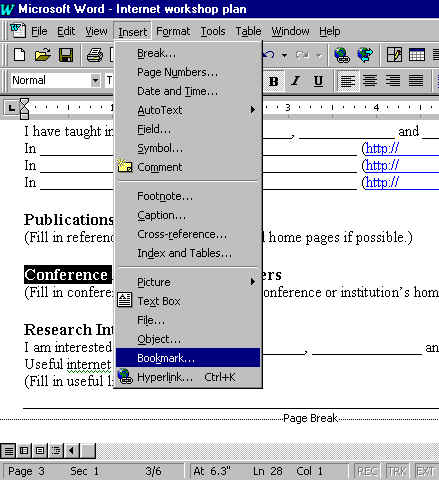
2.Highlight the word 'Conferences' by double-clicking it. Click the 'Insert' menu at the top, then click 'Bookmark', second item from the bottom of the drop-down list.
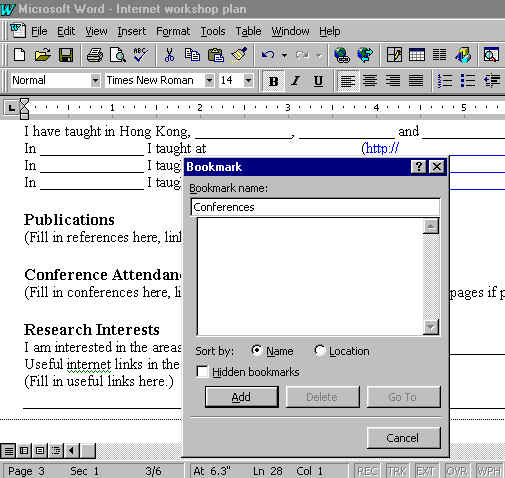
3.A gray box will appear called 'Bookmark'. Give the bookmark a name, such as 'Conferences', then click the 'Add' button at the bottom left of the gray box.
4. Type in 'Conferences' in the place you want to put the hyperlink, for example in a table of contents. Highlight it, then either click the 'Insert Hyperlink' icon:
OR click 'Insert', 'Hyperlink'.
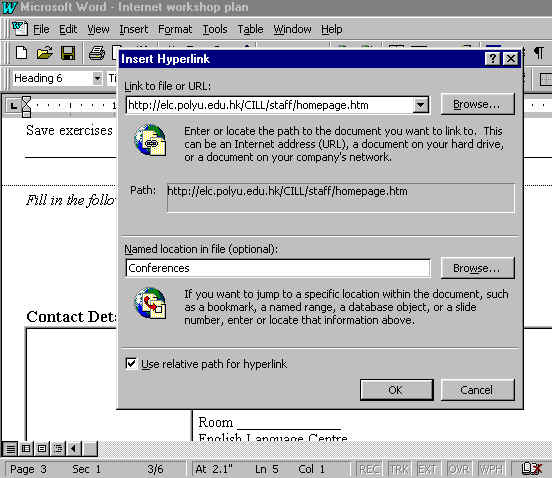
5. Click the 'Browse' button half-way down right side (not the one at the top that you used before for hyperlinking to an external site) of the 'Insert Hyperlink' gray box. Click on 'Conferences', then click the 'OK' button at the bottom.
|
. |
You should now see this 'Insert Hyperlink' gray box. Click the 'OK' button at the bottom.
6. You should now see this hyperlink highlighted in blue and underlined, like this: Conferences
7. Save the document by clicking the little picture of a floppy disk  under the menus.
8. Test the hyperlink by going to Netscape, and looking at your 'homepage.htm'. Click the 'Reload' in the top middle of the screen to see the latest version of your file. Click on the 'Conferences' hyperlink to check if the page jumps down to the section on conferences.
How to copy a picture off the Internet onto your homepage.
1. Go to the ELC staff homepages, go to your page, put the cursor on your picture, and click the right-hand button on the mouse. You will see a menu like this:
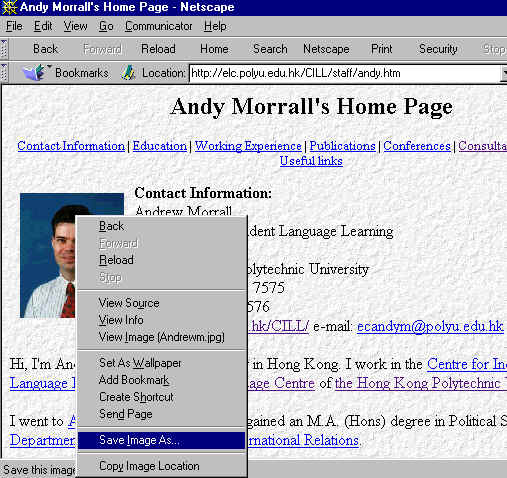
2. Click 'Save Image As' to save the picture to your hard drive. Remember where you save it: it's a good idea to write down the location.
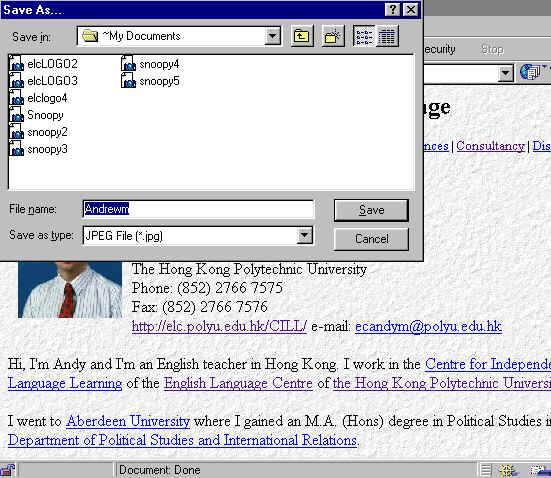
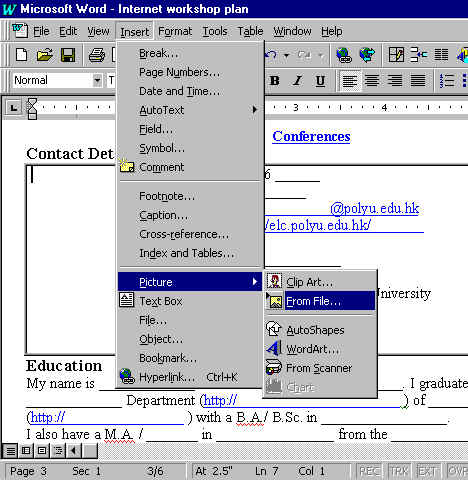
3. Go to Word and click on the page in the position where you want to insert the picture. Click 'Insert', 'Picture', 'From File'.
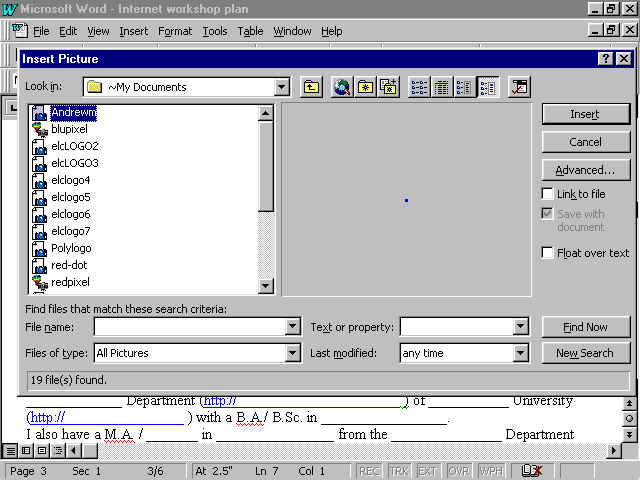
Click on the name of the file you saved earlier, and click the 'Insert' button at the top right.
The picture will now appear in your Word document.
4. Save the document, go to Netscape, press 'Reload' and have a look at it.
The most important thing about the exercises is that all the feedback must be on the Internet. Students want to know not only which answer is correct and which answer is wrong, but also why they are correct or wrong, so detailed feedback is necessary. It is good to provide links back from the feedback to the relevant rules.
Due to the limitations of the Internet, it is easiest to use multiple choice questions, such as the example exercise. It is possible to do fill-in-the-blank questions using 'forms', but that is more difficult.
It is also possible to write listening exercises, but sound files are very big, and take a long time to download over the Internet. If you know the students, you could give them a tape, and have listening comprehension questions on the Internet. Video over the Internet is also possible, but again the file sizes are very large and they take a long time to download. This is off-putting for the students.
If you can employ programmers as Research Assistants you can do all the things that they do at the VLC.
Putting things on the Internet
Only a limited number of staff have permission to put things on the ELC Internet site. They include Chris Greaves, Bruce Morrison, Jan Hamilton, Shari Nazir, Terri Leong, Sue Fitzgerald and Andy Morrall. Please ask one of them for help.
If you want to put your pages on an external site, you can join an Internet Service Provider who will give you space on their server, or set up your own free site at Geocities or Tripod.
